3.3 Top bar
The Top Bar is located at the top of the desktop interface and provides quick access to global tools and user actions. It remains visible across all pages and enhances productivity by offering one-click access to essential controls.

Top Bar
Top Bar Features:
1. Search
Instantly search for files, folders, applications, or system features. Just type a keyword and get quick results across the platform.

Search
2. Pin/Unpin Taskbar
Toggle the visibility of the taskbar. Pin it to keep it always visible or unpin for a cleaner workspace.

Pin/Unpin Taskbar
3. Notification Center
View important system alerts, activity updates, and messages. A badge indicator shows unread notifications at a glance.

Notification Center
4. Widget Toggle
Access mini applications and tools such as clocks, weather, notes, or custom widgets—right from the desktop.

Widget Toggle
5. On-Screen Guide Overview
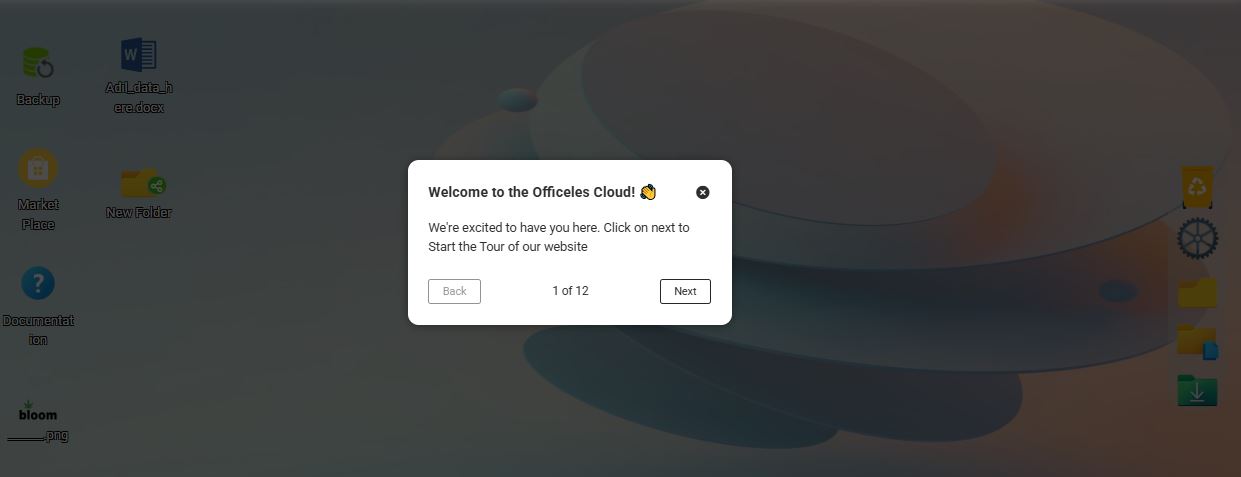
The application includes an interactive On-Screen Guide designed to help users understand every feature of the dashboard. A dedicated guide icon is located at the top-right corner of the screen. When users click this icon, the step-by-step on-screen guide begins, highlighting key elements, explaining their purpose, and providing complete details about how to navigate and use the dashboard effectively.
Page-Specific On-Screen Guide (Inside iFrames):
Every embedded page displayed within an iframe also contains its own On-Screen Guide icon positioned at the top-right corner. Clicking this icon launches a guide specifically tailored to that particular page. This ensures users receive accurate, page-level instructions and contextual information without leaving the current view.

On-Screen Guide
6. Documentation Access
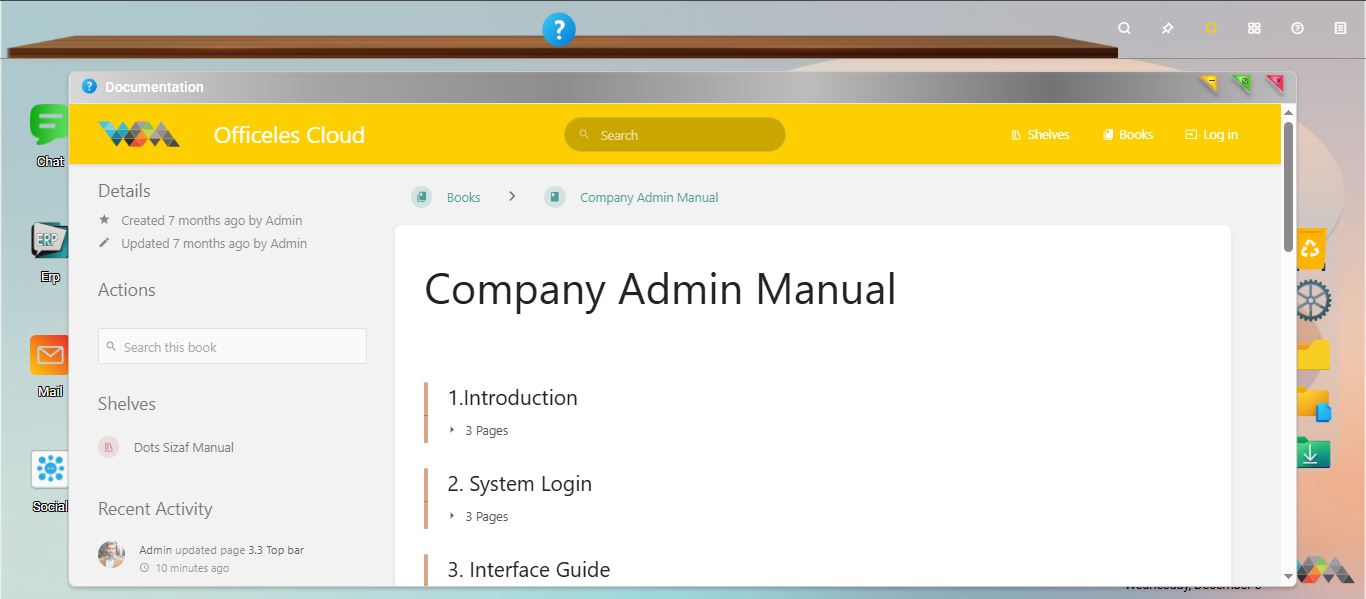
A Documentation icon is available on the top-right corner of the interface as the last icon in the action menu. When users click this icon, a dedicated documentation iframe opens, displaying detailed information related to the system, features, and workflow guidelines. This allows users to quickly access all relevant documentation without navigating away from the current dashboard.
Documentation
No Comments